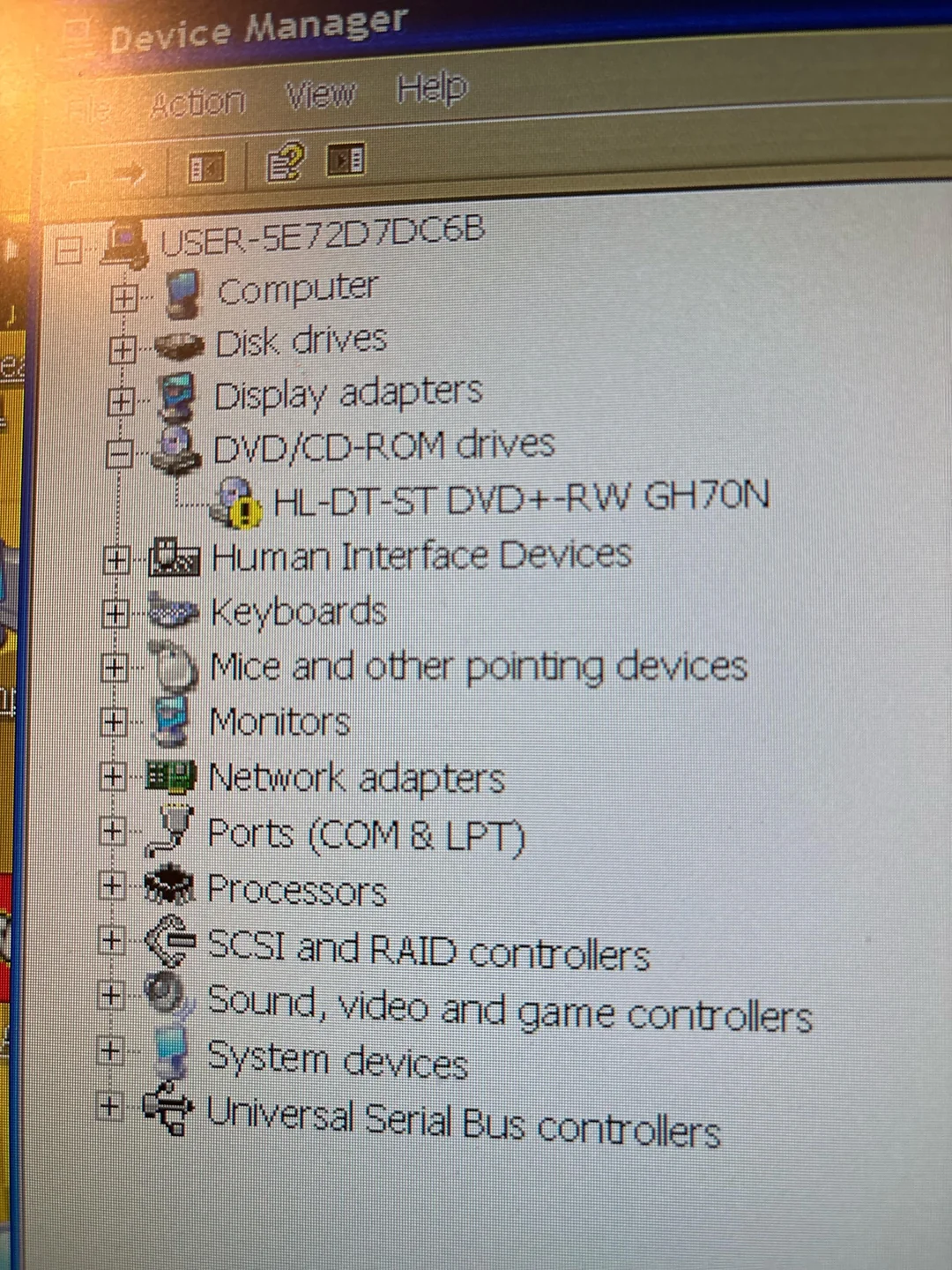
5 Best Free Driver Updaters for Windows 11 (Safe & Fast) – 2025
You are trying to play a game, but it keeps crashing. Or maybe your WiFi keeps dropping, and your sound isn’t working.
90% of the time, the problem is an Outdated Driver.
Updating drivers manually through “Device Manager” is slow and often fails to find the newest version. But if you search for “Driver Updaters” online, you usually find “Scareware”—programs that flash red warnings and demand $40 to fix “Critical Errors.”
You need a tool that is Safe, Honest, and Truly Free.
Here are the 5 Best Free Driver Updaters for Windows 11 and 10 that clean up your system without asking for a credit card.
1. Snappy Driver Installer Origin (The Geek’s Choice)
Best For: Offline use and technicians.
Snappy Driver Installer (SDIO) is the holy grail of driver tools. It is completely open-source, has zero ads, and no “Pro” version restrictions.
It is unique because you can download the entire driver database (over 20GB) to a USB stick. This means you can update a PC that has no internet connection—a lifesaver if your WiFi driver is missing after a format.
Pros:
-
✅ 100% Free: No speed limits, no download limits.
-
✅ No Bloatware: It doesn’t install extra junk on your PC.
-
✅ Offline Mode: Perfect for fresh Windows installations.
Cons:
-
❌ Old Interface: It looks like software from 2005.
-
❌ Confusion: It shows a lot of technical details that might scare beginners.
2. IObit Driver Booster (Free Version)
Best For: Gamers and beginners.
Driver Booster is the most popular tool on the market because it is incredibly easy to use. One big “SCAN” button does everything.
While the “Pro” version exists, the Free Version is generous enough for most users. It automatically creates a “System Restore Point” before installing anything, so if a new driver breaks your PC, you can undo it with one click.
Pros:
-
✅ Game Ready Drivers: Prioritizes graphics and audio drivers for gaming.
-
✅ Restore Point: Safety first—prevents blue screen errors.
-
✅ Huge Database: Finds drivers for rare devices.
Cons:
-
❌ Ads: The installer tries to install a “VPN” or “Screen Recorder.” You must uncheck these boxes carefully during setup.
-
❌ Speed Limit: The free version downloads slightly slower than the Pro version.
3. Microsoft Device Manager (The Official Way)
Best For: Users who hate third-party software.
You don’t always need to download a tool. Windows 11 has improved its internal updater significantly.
While it doesn’t check for “Gaming” drivers often, it is the safest method because every driver is “WHQL Certified” (tested by Microsoft) to ensure it won’t crash your system.
-
How to use: Settings > Windows Update > Advanced Options > Optional Updates.
Pros:
-
✅ Maximum Stability: Zero risk of viruses or incompatible drivers.
-
✅ Integrated: No extra software to install.
Cons:
-
❌ Slow: Microsoft often releases driver updates months after the manufacturer (like Nvidia/Intel).
4. Driver Easy (Free)
Best For: Finding “Unknown Devices”.
If you have a yellow triangle in your Device Manager that just says “Unknown Device,” Driver Easy is the best detective. It has a massive database of over 8 million drivers.
It scans your hardware ID and matches it to the exact driver you need.
Pros:
-
✅ Accuracy: Rarely installs the wrong driver.
-
✅ Offline Scan: Can scan a PC without internet and let you download the driver on another PC.
Cons:
-
❌ Manual Install: The free version downloads the driver file, but you have to manually install it via Device Manager (it doesn’t do the “One Click Install” for free).
5. Intel / AMD / NVIDIA Official Assistants
Best For: CPU and GPU updates.
If you only care about gaming performance, you should skip the generic tools and get the official assistant for your chip.
-
Intel: Intel Driver & Support Assistant.
-
AMD: Adrenalin Software.
-
NVIDIA: GeForce Experience.
These tools run in your taskbar and notify you the second a new update is released.
Pros:
-
✅ Day 1 Updates: Get new drivers the day a new game launches.
-
✅ Performance Tuning: Often includes tools to overclock your GPU.
Cons:
-
❌ Only updates the specific brand’s hardware (won’t fix your Realtek Audio or WiFi).
Conclusion: Which One Is Safe?
-
For pure safety: Use Snappy Driver Installer (SDIO).
-
For ease of use: Use Driver Booster (but watch out for ads during install).
-
For Gamers: Stick to NVIDIA/AMD official tools.
💡 Read Also on The Geek Solutions:
System Crash? Fix CRITICAL_PROCESS_DIED Blue Screen
Did Driver Booster fix your audio? Let us know in the comments!