5 Best Free Data Recovery Software for Windows 11 (Unlimited Data) – 2025
There is no feeling worse than accidentally emptying the Recycle Bin, only to realize your thesis, work project, or wedding photos were inside.
You rush to Google, search for “Free Data Recovery,” and download the first tool you see (usually DiskDrill or EaseUS). You wait 2 hours for it to scan, and finally, it finds your files! But when you click “Recover,” a popup appears:
“Free limit reached (500MB). Upgrade to Pro for $89 to recover this file.”
It feels like a scam.
As a tech blogger, I believe you shouldn’t have to pay a ransom for your own data. In 2025, there are still powerful tools that are 100% Free and Unlimited.
Here are the 5 Best Free Data Recovery Tools for Windows 11 and 10 that actually work.
1. Recuva (The Legend)
Best For: Beginners and “Recently Deleted” files.
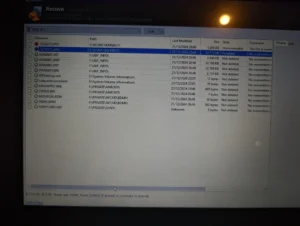
Developed by Piriform (the makers of CCleaner), Recuva is the most popular free recovery tool for a reason. It is lightweight, fast, and completely unlimited.
It has a “Wizard” mode that asks you simple questions like “What are you looking for?” (Pictures, Documents, Video) and “Where were they?” (Recycle Bin, SD Card).
Pros:
-
✅ Unlimited Recovery: Restore 10GB or 100GB, it doesn’t care.
-
✅ Traffic Light System: Shows files as Green (Good), Yellow (Damaged), or Red (Unrecoverable).
-
✅ Deep Scan: Can find files deleted months ago (takes longer).
Cons:
-
❌ Development Stopped: The interface hasn’t been updated in years, but it still works on Windows 11.
-
❌ Not great for complex RAW photo recovery.
2. Windows File Recovery (The Official Tool)
Best For: Tech-savvy users and SSDs.
Did you know Microsoft has its own official data recovery tool? It is not installed by default, but you can grab it for free from the Microsoft Store.
It doesn’t have a graphical interface (no buttons to click). It works entirely through the Command Prompt. While this looks scary, it is arguably the most powerful tool on this list because it uses Microsoft’s own algorithms to read the drive.
Pros:
-
✅ Official & Safe: No ads, no malware, no upsells.
-
✅ Signature Mode: Can recover specific file types (like PDF or PNG) even from corrupted drives.
-
✅ Completely Free: No pro version exists.
Cons:
-
❌ No GUI: You must type commands like
winfr C: D: /regular. -
❌ Difficult for beginners to use.
3. PhotoRec / TestDisk (The Geek’s Choice)
Best For: Photographers and Corrupted SD Cards.
If Recuva fails, PhotoRec is your nuclear option. It is an open-source tool that ignores the file system and hunts for the underlying data blocks.
It is famous for recovering photos from SD cards that cameras say are “Corrupted” or “Unreadable.”
Pros:
-
✅ 100% Open Source: Free forever, supported by a community.
-
✅ Powerful: Recovers files that other paid software can’t even see.
-
✅ Cross-Platform: Works on Windows, Mac, and Linux.
Cons:
-
❌ The Interface: It looks like a hacker tool from the 1990s (DOS screen).
-
❌ File Names: It recovers the files but often loses the original names (e.g.,
Image001.jpginstead ofHoliday.jpg).
4. Puran File Recovery
Best For: Old Hard Drives (HDD).
Puran is an older tool, but it has a unique “Deep Scan” algorithm that is surprisingly effective on older spinning hard drives (HDDs).
It can detect over 50 file formats and has a specialized option to recover data from “Lost Partitions” (when a drive letter disappears from My Computer).
Pros:
-
✅ Simple Interface: Easier than PhotoRec, more powerful than Recuva.
-
✅ Portable Version: You can run it from a USB stick without installing it (critical so you don’t overwrite the data you are trying to save).
Cons:
-
❌ Outdated: Not optimized for modern NVMe SSDs.
-
❌ Website looks very old.
5. DMDE (Free Edition)
Best For: Professional-grade recovery.
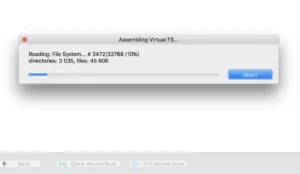
DMDE is actually professional forensic software. While it has a paid version, the “Free Edition” allows you to recover unlimited files, but with a restriction: you can only recover 4,000 files per batch.
Unless you are trying to recover a massive database, 4,000 files at a time is effectively unlimited for home users. It allows you to see deep into the disk structure.
Pros:
-
✅ Hex Editor: Allows you to view the raw data on the disk (for experts).
-
✅ Partition Doctor: Can fix a broken partition table to make a drive readable again.
Cons:
-
❌ Complex: Too many buttons and settings for a casual user.
Conclusion: Which Tool Should You Use?
-
Step 1: Download Recuva. It works 80% of the time and is the easiest.
-
Step 2: If Recuva fails, try PhotoRec (for photos) or Windows File Recovery (for documents).
-
Important: NEVER install the recovery software on the same drive you lost data on. If you deleted files on Drive C, install these tools on Drive D or a USB stick!
💡 Read Also on The Geek Solutions:
Need to Edit PDFs? 5 Best Free PDF Editors (No Watermark)
Laptop Health: Check Laptop Battery Health Report in Windows 11
Did Recuva save your files? Let us know your success story below!