5 Best Free PDF Editors for Windows 11 (No Watermark) – 2025 Review
If you have ever tried to edit a PDF on Windows, you know the pain. You download a “Free PDF Editor,” spend 20 minutes editing your document, and when you hit “Save,” it slaps a giant ugly watermark across your file asking for $50.
Adobe Acrobat Pro is the industry standard, but it costs over $200/year. For students and freelancers, that is simply too much.
The good news is that in 2025, there are finally some truly free alternatives that allow you to edit existing text, add images, and sign forms without any hidden costs.
Here are the 5 Best Free PDF Editors for Windows 11 and 10 that actually work and leave No Watermarks.
1. PDFgear (The New King of Free)
Best For: Everyone. It is what Adobe Acrobat should be.
If you download only one tool from this list, make it PDFgear. It is a relatively new software that has taken the tech world by storm because it is 100% Free with absolutely no catch. No premium version exists.
It uses a clean, modern interface that looks just like Microsoft Word. You can click on any text in a PDF and change the font, size, or color immediately.
Pros:
-
✅ Totally Free: No watermarks, no page limits, no ads.
-
✅ AI Copilot: It has a built-in AI (like ChatGPT) that can summarize long PDFs for you.
-
✅ Convert: Converts PDF to Word, Excel, or PPT instantly.
-
✅ eSign: Allows you to create and save your digital signature.
Cons:
-
❌ The “Replace Text” feature can sometimes mess up the alignment on very old scanned documents.
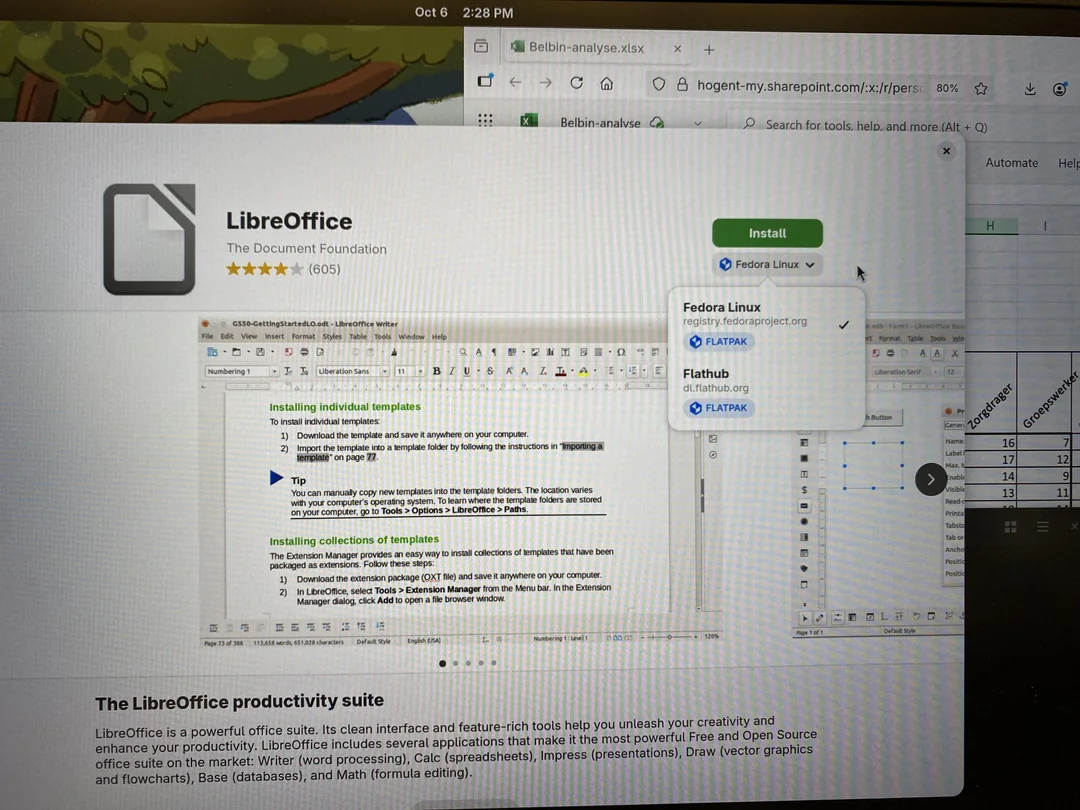
2. LibreOffice Draw (Best for Deep Editing)
Best For: Advanced users who need to change layout and design.
Most people know LibreOffice as a free alternative to Microsoft Word, but the suite comes with a tool called “Draw”.
Unlike other editors that just “patch” over the PDF, LibreOffice Draw opens the PDF as a collection of editable objects. It treats text lines as separate boxes, allowing you to move paragraphs around, delete entire sections, or resize images effortlessly.
Pros:
-
✅ Open Source: Completely free forever.
-
✅ Deep Editing: You can delete images, move graphs, and rewrite whole pages.
-
✅ No Limits: Edit a 500-page document without crashing.
Cons:
-
❌ Interface: Looks like Windows XP software (very old school).
-
❌ Formatting: Sometimes changes the fonts if you don’t have the original font installed on your PC.
3. Sejda PDF (Best for Quick Web Edits)
Best For: One-off tasks when you don’t want to install software.
If you are on a school or office computer and cannot install programs, Sejda is the best web-based editor. You just drag and drop your file onto their website, make your changes, and download.
Unlike other web tools (like SmallPDF or iLovePDF) that limit you severely, Sejda is very generous with its free tier.
Pros:
-
✅ No Installation: Runs in Chrome/Edge.
-
✅ “Whiteout” Tool: excellent for hiding private info before printing.
-
✅ Form Filler: Great for filling out visa applications or tax forms.
Cons:
-
❌ The Limit: Free users can only do 3 tasks per hour and files must be under 50MB.
-
❌ Privacy: Since it is cloud-based, we don’t recommend uploading highly sensitive banking documents.
4. Canva (Best for Design PDFs)
Best For: Resumes, Flyers, and Menus.
Yes, Canva now includes a powerful PDF editor. If you have a PDF that is heavy on graphics (like a CV or a restaurant menu) and you need to update a price or swap a photo, Canva is superior to dedicated PDF tools.
You simply upload your PDF, and Canva converts it into a design project. You can then use millions of free stock photos and fonts to spruce it up.
Pros:
-
✅ Visual Editing: Best for making boring PDFs look beautiful.
-
✅ Templates: Access to thousands of free graphics.
Cons:
-
❌ Not for Documents: Terrible for editing contracts or long text-heavy reports.
-
❌ Exporting: Sometimes the file size of the downloaded PDF is huge.
5. Microsoft Edge (Best for Reading & Drawing)
Best For: Filling forms and highlighting.
You already have this installed. Microsoft Edge has quietly become one of the best PDF viewers on the market. While you cannot “edit text” (rewrite sentences), it is the best tool for Drawing and Reading.
If you have a touchscreen laptop or tablet, you can use a stylus to write notes directly on the PDF.
Pros:
-
✅ Speed: Opens massive files instantly.
-
✅ Read Aloud: Has the best “Text-to-Speech” engine to read documents to you.
-
✅ Inking: Smooth drawing tools for students taking notes.
Cons:
-
❌ Cannot edit existing text.
Conclusion: Which One Should You Choose?
-
For full text editing: Download PDFgear immediately. It is the best free tool in 2025.
-
For quick web edits: Use Sejda.
-
For heavy design work: Use Canva.
💡 Read Also on The Geek Solutions:
System Slow? How to Speed Up Windows 11 Gaming Performance
Need to Record? 5 Best Free Screen Recorders for Low-End PCs
Have you tried PDFgear yet? Let us know if it worked for you in the comments!