5 Best Free Video Editors for Low-End PCs (No Watermark) – 2025
You have recorded your gameplay or tutorial using a screen recorder. Now, you need to cut out the boring parts, add some text, and put background music in.
But there is a problem: You have a “Potato PC” (maybe an i3 processor with only 4GB of RAM).
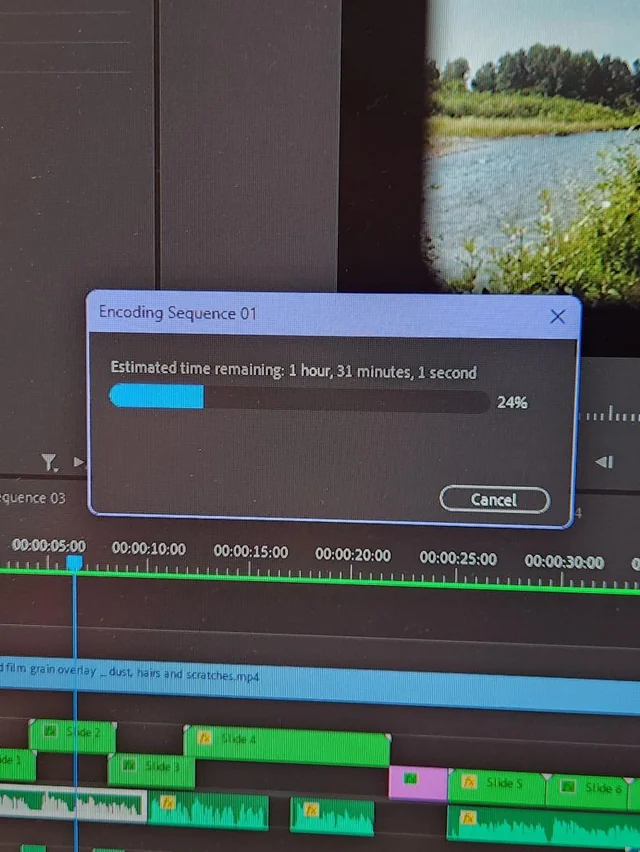
If you try to install Adobe Premiere Pro or DaVinci Resolve, your computer will freeze, crash, or burn a hole in your desk. And if you download “Filmora,” it works fine until you export, where it demands money to remove a giant watermark.
You need software that is Lightweight, Free, and leaves No Watermark.
Here are the 5 Best Free Video Editors optimized specifically for low-spec computers in 2025.
1. Shotcut (The Open Source King)
Best For: 1080p editing on 4GB RAM.
Shotcut is the closest thing to professional software that runs on weak hardware. Because it is Open Source (like OBS Studio), it doesn’t have bloated background services tracking you.
It uses “Native Editing,” which means you don’t need to import files into the library first—just drag them onto the timeline and start cutting. This saves massive amounts of RAM.
Pros:
-
✅ Zero Watermarks: Completely free forever.
-
✅ Wide Format Support: Supports 4K, ProRes, and DNxHD (rare for free tools).
-
✅ Portable Version: You can run it from a USB stick without installing it.
Cons:
-
❌ Interface: It looks a bit complex at first (not as simple as Movie Maker).
-
❌ No Stock Library: You have to bring your own music and effects.
2. VSDC Free Video Editor
Best For: Adding text, shapes, and complex effects.
VSDC is famous for being incredibly light. It can run on computers that are 10 years old.
Unlike standard “Linear” editors, VSDC is “Non-Linear.” This means you can place objects anywhere on the screen and make them appear whenever you want. It is fantastic for adding arrows, blur effects (to hide passwords), and annotations to tutorial videos.
Pros:
-
✅ Hardware Acceleration: Uses your weak GPU to render faster.
-
✅ Chroma Key: Has a surprisingly good “Green Screen” removal tool.
-
✅ Direct Export: Profiles for YouTube, Instagram, and TikTok built-in.
Cons:
-
❌ Menu: The buttons are very small and crowded.
-
❌ Upgrade Nag: It asks you to upgrade to Pro sometimes (but you can ignore it).
3. Microsoft Clipchamp (Built-in)
Best For: TikToks, Reels, and fast cuts.
If you have Windows 11, you already have this. Clipchamp replaced the old “Windows Movie Maker.”
While the “Premium” version costs money, the Free Version is surprisingly generous. It allows unlimited exports in 1080p with no watermark. Since it is a “Web App” wrapper, it relies more on your internet than your CPU power.
Pros:
-
✅ Stock Library: Comes with free music, stickers, and sound effects.
-
✅ Templates: Drag-and-drop templates for YouTube Intros and Instagram Stories.
-
✅ Text-to-Speech: Has a realistic AI voice generator for narrating your videos.
Cons:
-
❌ Internet Required: It works best when online.
-
❌ Privacy: It’s Microsoft, so it requires a login.
4. VideoPad (The “Old School” Choice)
Best For: Users who miss Windows Movie Maker.
VideoPad (by NCH Software) is not pretty. It looks like software from 2010. But that is exactly why it is perfect for low-end PCs. It is extremely efficient.
It has a classic layout: Preview screen on the left, files on the right, timeline at the bottom. It is intuitive and crashes very rarely.
Pros:
-
✅ Fastest Rendering: Exports videos quicker than any other tool on this list.
-
✅ Simple Effects: Easy one-click transitions (Fade, Zoom, Dissolve).
Cons:
-
❌ The “Home” License: The free version is strictly for “Home Use Only.”
-
❌ Nag Screens: It pops up asking you to certify you are using it at home.
5. OpenShot
Best For: Linux users and absolute beginners.
If Shotcut is too hard to learn, OpenShot is the simpler alternative. It was designed to be easy.
It has a simple “Drag and Drop” interface. You drop two clips, they snap together. You drop a transition between them, it works. It is built on FFmpeg, so it supports almost every video file type in existence.
Pros:
-
✅ Unlimited Tracks: Add as many layers of video and audio as you want.
-
✅ 3D Titles: Can create 3D animated titles (requires Blender installed).
Cons:
-
❌ Stability: It can randomly crash on very long projects (Save often!).
-
❌ Preview Lag: The preview window can stutter if you add too many effects.
Conclusion: Which Editor Fits Your PC?
-
For 4GB RAM: Use [Shotcut](Link to External). It is the most stable.
-
For Quick Social Media: Use Clipchamp.
-
For Tutorials: Use VSDC for its text tools.
💡 Read Also on The Geek Solutions:
Recording: [5 Best Free Screen Recorders for Low-End PCs](Link to Article 3)
Editing PDFs? [5 Best Free PDF Editors (No Watermark)](Link to Article 16)
Which editor runs best on your laptop? Let us know in the comments!