Fix Android 15 Battery Drain After December 2025 Update (Solved)
Did you recently update your Pixel or Samsung device to the December 2025 Security Patch (Android 15)?
If your phone is suddenly overheating in your pocket or losing 10-15% battery every hour even when you aren’t using it, you are not alone. Thousands of users on Reddit and the official Google Support forums are reporting massive battery drain issues with the latest build (Build No: BP4A.251205.006).
For many, the battery life has dropped from a full day of use to barely 6 hours. The issue is frustrating, but it is fixable.
In this guide, we will explain why this is happening and provide 3 tested methods to fix the drain immediately without waiting for the next update.
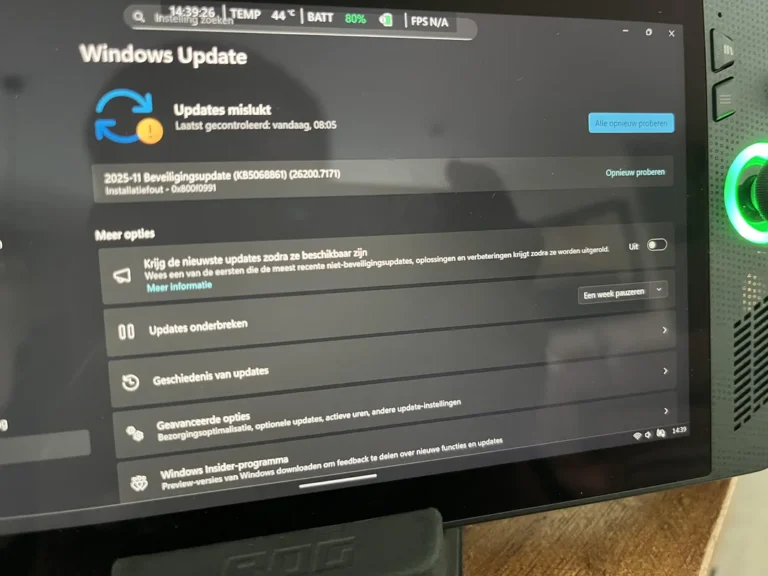
Note: If you are also facing issues with your PC after the recent patches, check out our guide on Fixing Windows 11 Update Error 0x800f0991
Why Is This Happening? (The Technical Reason)
Before we fix it, it is important to understand why a security update ruined your battery.
The December 2025 update included a new version of the Modem Firmware (which controls your 5G/4G/WiFi). In this specific version, there is a bug that causes the modem to constantly “hunt” for a signal, even if your connection is stable.
Additionally, a conflict with Google Play Services is causing the CPU to stay awake in the background, preventing the phone from entering “Deep Sleep” mode when the screen is off. This is why your phone feels warm even when it’s just sitting on the table.
Pre-Requisites Before You Start
To ensure these fixes work safely and you don’t lose any important data, please check the following:
-
Charge Level: Ensure your phone is charged to at least 50%.
-
Backups: While these methods are safe, it is always smart to run a quick backup of your WhatsApp chats.
-
WiFi: Make sure you are connected to WiFi, as one of the steps requires re-downloading some system data.
Method 1: Clear “Device Health Services” Data
This is the most common fix recommended by Google Product Experts. The update often corrupts the “Adaptive Battery” calibration data. By clearing this, you force the phone to re-learn your usage patterns from scratch.
-
Open Settings on your Android phone.
-
Go to Apps > See all apps.
-
Find Device Health Services in the list. (If you don’t see it, tap the 3 dots in the top corner and select “Show System”).
-
Tap on Storage & cache > Manage Space.
-
Click on the button labeled Clear All Data.
-
Restart your phone immediately.
What happens next? For the first 2-3 hours, your battery might still feel normal. But after a full charge cycle (0% to 100%), the system will recalibrate, and the drain should stop.
Method 2: Reset Google Play Services (The “Sync Loop” Fix)
If Method 1 didn’t work, the issue is likely the Google Play Services app getting stuck in a sync loop. This is the main culprit for 90% of overheating issues.
-
Go to Settings > Apps.
-
Select Google Play Services.
-
Tap Storage & cache.
-
Tap Clear Storage (or Manage Space) > Clear All Data.
-
Important: As soon as you press this, Reboot your phone.
⚠️ Warning: This will NOT delete your photos, contacts, or apps. However, it will remove your credit cards from Google Wallet (you will need to add them again) and may reset your Wear OS watch pairing.
Method 3: Disable “Adaptive Connectivity”
This feature is supposed to save battery by smartly switching between 5G and 4G. However, in the Android 15 QPR1 update, it is broken and does the opposite—it keeps the modem active at high power.
-
Open Settings.
-
Go to Network & Internet.
-
Scroll down to find Adaptive Connectivity.
-
Toggle the switch OFF.
According to users on the Google Pixel Help Community turning this off has doubled the standby time for Pixel 8 and 9 users on the December patch.
Frequently Asked Questions (FAQs)
Q: Will I have to do this after every update? A: No. This is a specific bug with the December 2025 patch. Once Google releases the January fix, you can revert these settings to default.
Q: Does this affect Samsung phones too? A: Yes. Samsung users on the OneUI 7 Beta (which is based on Android 15) are also reporting similar drain. Method 2 works perfectly for Samsung devices as well.
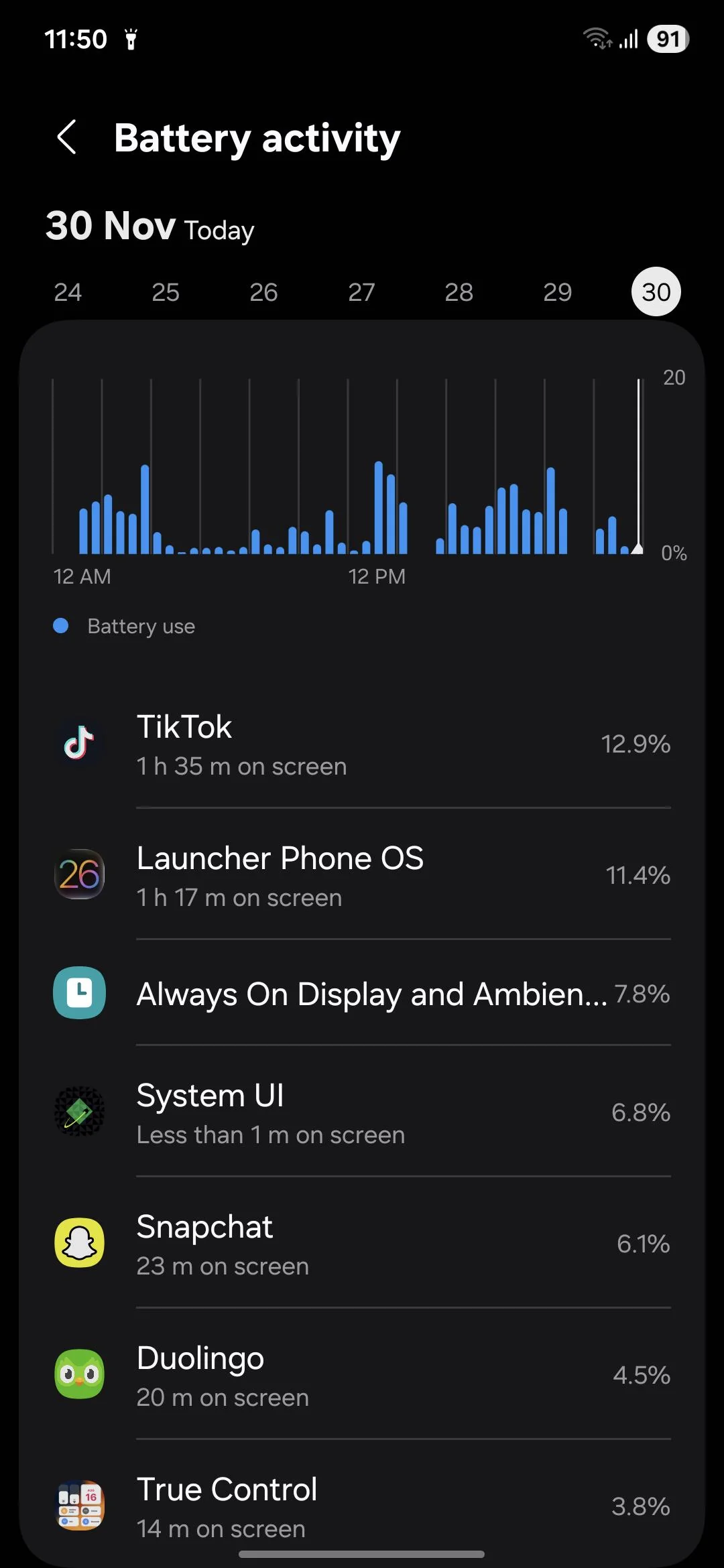
Q: My phone is still hot. What should I do? A: If the phone is physically hot to the touch, check your “Battery Usage” settings. If an app like Instagram or TikTok is at the top of the list with high background usage, set that specific app to “Restricted” mode.
Verdict: Should You Factory Reset?
If none of the above methods work, you might be tempted to do a Factory Reset. We advise against it for now.
Google is aware of the issue and a “hotfix” update is expected to roll out very soon. We recommend using Battery Saver Mode temporarily until the official patch arrives.
Is your battery life back to normal? Let us know in the comments below which method worked for you!