
Fix “The Application Was Unable to Start Correctly (0xc000007b)” – Definitive Guide
You just finished downloading a massive game like GTA V, Elden Ring, or Valorant. You double-click the icon, ready to play, but instead of the game loading, a small, annoying popup appears:
“The application was unable to start correctly (0xc000007b). Click OK to close the application.”
This error isn’t limited to games. It often affects Adobe software (Photoshop, Premiere) and even basic office tools.
Unlike other errors that give you a clue (like “Missing File”), 0xc000007b is vague. It creates panic because clicking “OK” just closes the app, and nothing else happens.
In this comprehensive guide, we will fix this error step-by-step. We start with the safe methods and move to the advanced “DLL Replacement” method that fixes 99% of stubborn cases.
Why Is This Happening? (The Technical Truth)
To fix this, you need to understand what 0xc000007b actually means.
It stands for INVALID_IMAGE_FORMAT.
In simple terms: Your application is 64-bit, but it is trying to load a 32-bit system file (DLL), or vice versa. It’s like trying to put a square peg in a round hole.
This mismatch usually happens because:
-
Corrupt DirectX Files: You installed a game that overwrote good system files with bad ones.
-
Mixed C++ Redistributables: You have too many versions of Visual Studio C++ installed (2010, 2012, 2015, etc.), and they are fighting each other.
-
Manual DLL Errors: You tried to fix a previous error by downloading a random
.dllfile from the internet and pasting it intoSystem32. (This is the most common cause).
Method 1: Reinstall DirectX (The Safe First Step)
Most games rely on Microsoft DirectX to run graphics. If these files are corrupt, the 0xc000007b error triggers immediately.
-
Visit the official Microsoft DirectX End-User Runtime download page.
-
Download the
dxwebsetup.exeinstaller. -
Run the installer. Uncheck the “Install Bing Bar” option if it appears.
-
Let it scan your PC. It will automatically find missing or outdated DirectX files (DX9, DX10, DX11) and replace them.
-
Restart your PC and try launching the game.
Method 2: Repair Visual C++ Redistributables (Crucial)
This is the fix for 70% of users. Your computer needs specific “libraries” to run code written in C++. If these libraries are broken, the app crashes.
-
Press Win + I to open Settings.
-
Go to Apps > Installed Apps.
-
Search for
Visual C++. You will likely see a long list (2008, 2010, 2013, 2015-2022). -
Do not uninstall them yet. Instead, try to Repair the latest one:
-
Click the three dots next to “Microsoft Visual C++ 2015-2022 Redistributable (x64)”.
-
Select Modify.
-
Click the Repair button.
-
-
Do the same for the (x86) version.
Did that fail? If repairing doesn’t work, you must Uninstall ALL of them (yes, all versions) and then download the fresh “All-in-One” Visual C++ package from Microsoft’s site.
Method 3: Run the App as Administrator
Sometimes, the error is simply a permission issue where the game cannot access a specific DLL in the system folder.
-
Right-click the game/app shortcut on your desktop.
-
Select Properties.
-
Go to the Compatibility tab.
-
Check the box: Run this program as an administrator.
-
Click Apply > OK.
Method 4: The “.NET Framework” Fix
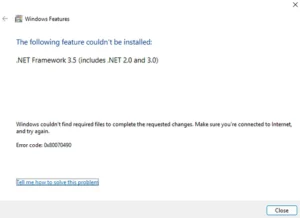
Windows 10 and 11 come with .NET Framework pre-installed, but sometimes it gets disabled or corrupted by updates.
-
Press the Start button and type
Windows Features. -
Click on Turn Windows features on or off.
-
Look for the first item: .NET Framework 3.5 (includes .NET 2.0 and 3.0).
-
Check the box if it is empty. (If it is a black square, uncheck it, restart PC, and check it again to reset it).
-
Click OK. Windows will download the necessary files.
Method 5: The “Sniper” DLL Replacement (Advanced)
Warning: Only do this if Methods 1-4 failed. This involves manually replacing system files.
If you are getting 0xc000007b, it is likely that xinput1_3.dll or msvcp140.dll inside your system folder is the wrong version (32-bit instead of 64-bit).
-
Go to
C:\Windows\System32. -
Find the files
xinput1_3.dll,xcopy.dll, andmsvcp140.dll. -
Delete them. (Yes, delete them to force a re-download).
-
Go to
C:\Windows\SysWOW64. -
Find the same files and delete them there too.
-
Now, run the DirectX Installer (from Method 1) and the Visual C++ Installer (from Method 2) again.
This forces the installers to place fresh, correct versions of the files into the folders, removing the corrupt “mismatched” ones causing the error.
Method 6: Check Hard Disk for Corruption
If nothing works, your actual hard drive might have bad sectors where the game is installed.
-
Open Command Prompt (Admin).
-
Type:
chkdsk /f /r -
Press Enter.
-
It will ask if you want to schedule the check for the next restart. Type
Yand press Enter. -
Restart your PC. This scan can take 30 minutes to 1 hour. Do not turn off your PC.
Frequently Asked Questions (FAQs)
Q: Does reinstalling Windows fix this? A: Yes, absolutely. Reinstalling Windows resets all DLL files to their factory state. However, that is a drastic step. Try the methods above first.
Q: Can I just download the missing DLL from a website? A: NO. Never download a single DLL file from sites like “dll-files.com”. These files are often outdated, modified, or contain viruses. Always get DLLs by installing the official Microsoft installers (DirectX or Visual C++).
Q: Why does this happen mostly with pirated games? A: “Repacked” games often try to force-install outdated DirectX versions during setup, which overwrites your modern Windows 11 files, causing the mismatch.
Conclusion
Error 0xc000007b is a “mismatch” error. It means your PC is confused between 32-bit and 64-bit files. Method 2 (Reinstalling Visual C++) is the solution that works for most gamers.
If you managed to fix it, enjoy your game! If not, you may need to check if your Windows installation itself is damaged.
💡 Read Also on The Geek Solutions:
-
Store Broken? Solved: Microsoft Store Error 0x80131500
-
Update Failed? Fix Windows Update Error 0x80070005 “Access Denied”