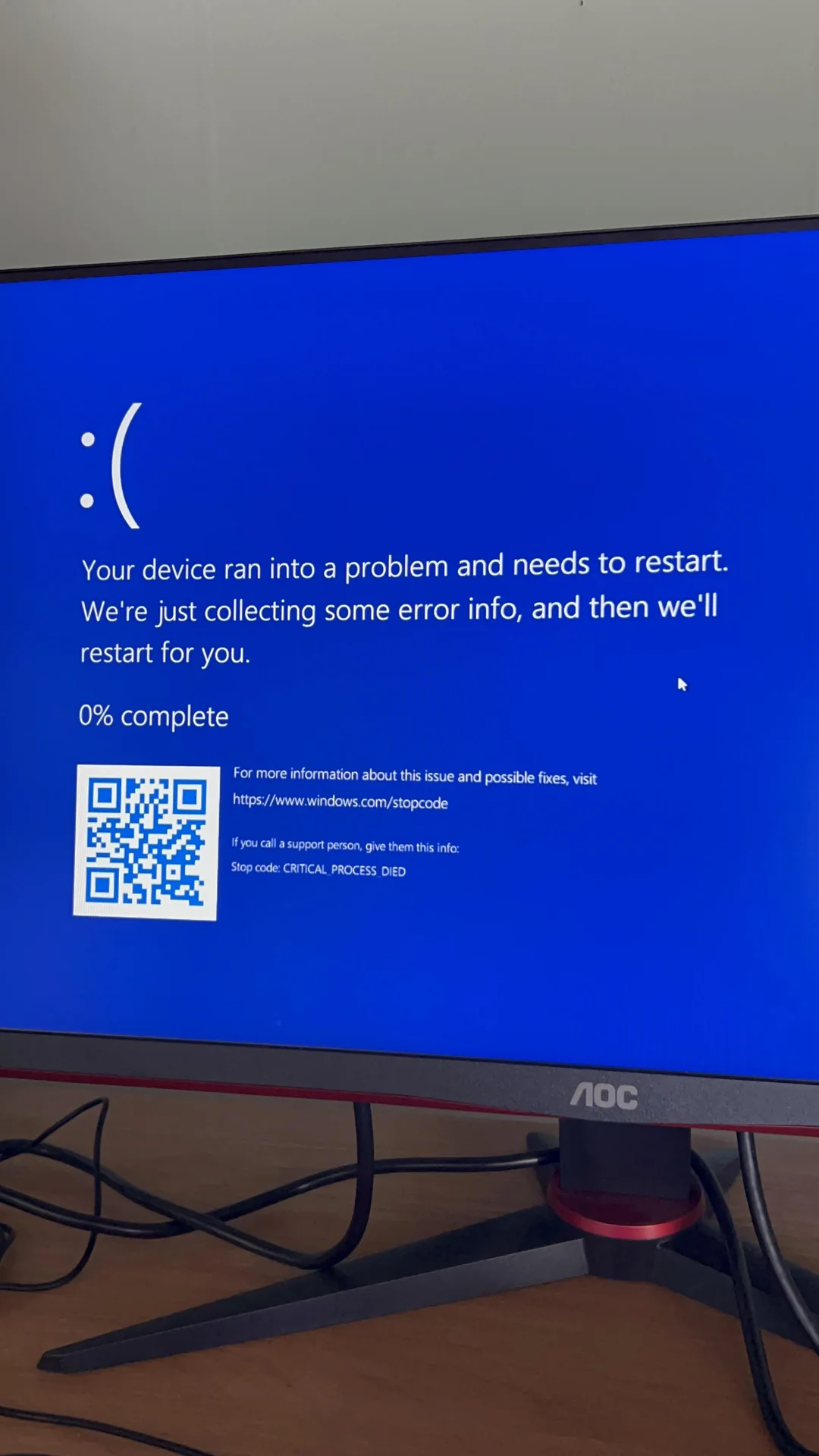
Fix Stop Code: CRITICAL_PROCESS_DIED on Windows 11 (BSOD)
You are working on an important document or playing a game, and suddenly—everything stops. Your screen turns blue, a sad face appears :(, and your PC restarts. The error code at the bottom reads:
Stop Code: CRITICAL_PROCESS_DIED (0x000000EF)
This is one of the most serious “Blue Screen of Death” (BSOD) errors.
Unlike other errors, this one means a core component of Windows (like csrss.exe or wininit.exe) unexpectedly stopped working. Because Windows cannot function without these processes, it instantly kills the system to prevent hardware damage.
Here are 4 critical fixes to stop this from happening again.
Why Is This Happening?
This error is rarely caused by a virus. It is usually caused by:
-
Bad Drivers: A recent update to your Graphics Card or Audio driver is crashing the system kernel.
-
Corrupt System Files: Your Windows installation has “rotted” files.
-
Hardware Failure: Failing RAM or a dying Hard Drive.
Method 1: Run the Hardware Troubleshooter
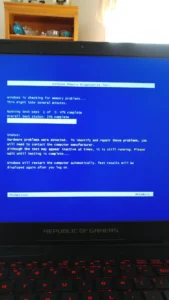
First, let’s make sure your physical components are safe.
-
Press Start, type
cmd, and run as Administrator. -
Type this command to check your Disk Drive health:
DOS
chkdsk C: /f /r -
Type
Yto confirm. -
Restart your PC. The scan will take 30-60 minutes. If it finds bad sectors, it will fix them. If your disk is dying, this will tell you.
Method 2: Update All Drivers (The Most Likely Fix)
Since “Critical Process” errors are usually driver-related, you need to ensure everything is up to date.
-
Right-click the Start button and select Device Manager.
-
Look for any device with a Yellow Triangle (!) icon.
-
If you see one, right-click it > Update driver > Search automatically.
-
Crucial Step: Expand Display Adapters, right-click your GPU (NVIDIA/AMD/Intel), and update it too. Graphics drivers are the #1 cause of this crash.
Method 3: Use DISM to Repair the Windows Image
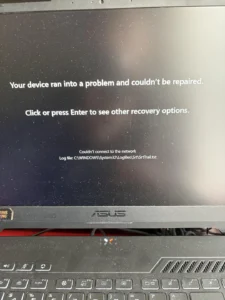
If a Windows file (like svchost.exe) is corrupt, the process will die and cause the Blue Screen.
-
Open Command Prompt (Admin).
-
Run this command (requires internet):
DOS
DISM /Online /Cleanup-Image /RestoreHealth -
Wait for the progress bar to hit 100%.
-
Then run:
DOS
sfc /scannow -
If it says “Files Repaired,” you have likely fixed the BSOD.
Method 4: Clean Boot (To Find the Culprit)
If the crash keeps happening, a third-party app (like an Antivirus or RGB lighting software) might be killing the process.
-
Press Win + R, type
msconfig, and hit Enter. -
Go to the Services tab.
-
Check the box: “Hide all Microsoft services” (Very Important!).
-
Click Disable all.
-
Go to the Startup tab > Open Task Manager > Disable all startup apps.
-
Restart.
If the Blue Screen stops, you know one of your installed apps was causing it. Turn them back on one by one to find the bad one.
Frequently Asked Questions (FAQs)
Q: Can overheating cause CRITICAL_PROCESS_DIED? A: Yes. If your CPU hits 100°C, it might shut down processes to save itself. Clean your laptop fans if you feel excessive heat.
Q: Will I lose my data? A: The error itself doesn’t delete data, but the sudden restarts can corrupt unsaved files. Backup your data immediately!
Conclusion
The CRITICAL_PROCESS_DIED error is a serious warning sign. Start with Method 3 (DISM Repair) as it fixes the most common cause (corrupt system files). If that fails, it is likely a driver issue (Method 2).
💡 Read Also on The Geek Solutions:
Game Crash? Fix Error 0xc000007b “Application Unable to Start”
Windows Update Bug: Fix Windows Update Error 0x80070005
Did the DISM command stop the crashes? Let us know in the comments!