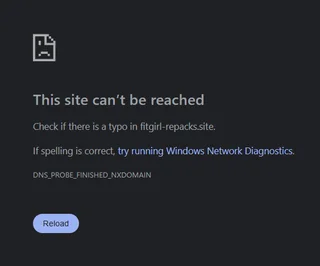
Fix “DNS_PROBE_FINISHED_NXDOMAIN” in Chrome (Windows 11/10) – Solved
You try to open a website like Facebook or Google, but instead of the page, you see a dinosaur and a confusing error message: DNS_PROBE_FINISHED_NXDOMAIN.
The strange part? Your internet is working perfectly fine on your mobile phone, and apps like Discord or Spotify might still be online on your PC. Only the browser is broken.
This error is extremely common on Windows 10 and Windows 11. It simply means your computer cannot translate the website name (like “https://www.google.com/search?q=google.com”) into an IP address.
Here is why this is happening and 3 tested methods to fix it permanently.
Why Is This Happening?
“NXDOMAIN” stands for Non-Existent Domain. Essentially, your computer’s “phonebook” (the DNS Cache) is outdated or corrupted. It is trying to find a website at an old address that doesn’t exist anymore.
This usually happens due to:
-
Corrupt DNS Cache: Old data is stuck in your system.
-
Slow ISP Servers: Your Internet Service Provider’s default DNS is down or slow.
-
VPN Conflicts: A VPN or Antivirus might have blocked the connection incorrectly.
Method 1: Flush Your DNS Cache (The 1-Minute Fix)
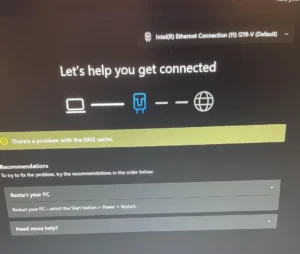
This is the standard fix that works 90% of the time. We will use the Command Prompt to clear out the old “phonebook.”
-
Press the Start button and type
cmd. -
Right-click on Command Prompt and select Run as Administrator.
-
In the black window, type the following command and press Enter:
DOS
ipconfig /flushdns -
You should see a message: “Successfully flushed the DNS Resolver Cache.”
-
Optional: To be extra safe, also run this command to reset your connection settings:
DOS
netsh winsock reset -
Restart your Computer and try opening the website again.
Method 2: Change to Google Public DNS (Speed Boost)
If Method 1 didn’t work, your ISP’s DNS server might be broken. Switching to Google’s free servers is not only a fix but often makes your internet faster.
-
Press Win + R, type
ncpa.cpl, and hit Enter. -
Right-click your active WiFi or Ethernet adapter and select Properties.
-
Find Internet Protocol Version 4 (TCP/IPv4) in the list and double-click it.
-
Select the option: “Use the following DNS server addresses”.
-
Enter these numbers:
-
Preferred DNS server:
8.8.8.8 -
Alternate DNS server:
8.8.4.4
-
-
Click OK > OK.
Refresh your Chrome browser. The “NXDOMAIN” error should disappear instantly.
Method 3: Reset Chrome Flags
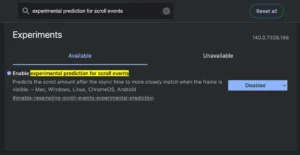
Sometimes, experimental features in Chrome cause network conflicts. Resetting them to default can solve the issue.
-
Open Chrome and type this in the address bar:
chrome://flags -
Press Enter.
-
Click the button at the top right that says “Reset all”.
-
Click the blue Relaunch button.
Frequently Asked Questions (FAQs)
Q: Is this error caused by a virus? A: Usually, no. It is typically just a configuration glitch. However, some malware changes your DNS settings to redirect you. If Method 2 (changing DNS) was locked or difficult, run a full antivirus scan.
Q: Will flushing DNS slow down my computer? A: No. It might make the very first time you load a website take 0.1 seconds longer, but after that, it will be faster because the cache is fresh and error-free.
Q: Can I use Cloudflare DNS instead of Google? A: Yes! Many gamers prefer Cloudflare DNS for speed. Use 1.1.1.1 and 1.0.0.1 in Method 2 instead of the Google numbers.
Conclusion
The DNS_PROBE_FINISHED_NXDOMAIN error looks scary, but it is harmless. Changing your DNS servers to 8.8.8.8 (Method 2) is the most permanent solution and will prevent this from happening again in the future.
💡 Read Also:
Browser Issues: Fix WhatsApp Web QR Code Not Loading
System Slow? 5 Best Free Screen Recorders for Low-End PCs
Did the CMD command work for you? Let us know in the comments below!