Fix Windows 11 Update Error 0x800f0991 (KB5072033) – 3 Working Solutions
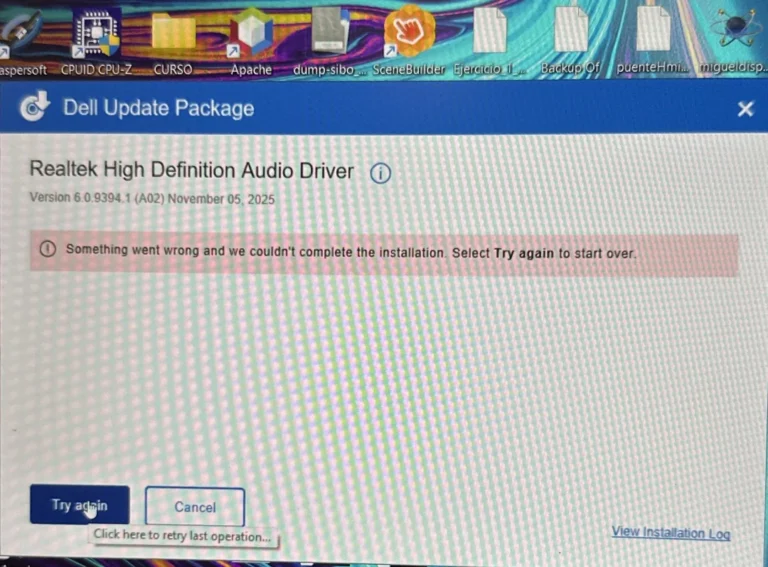
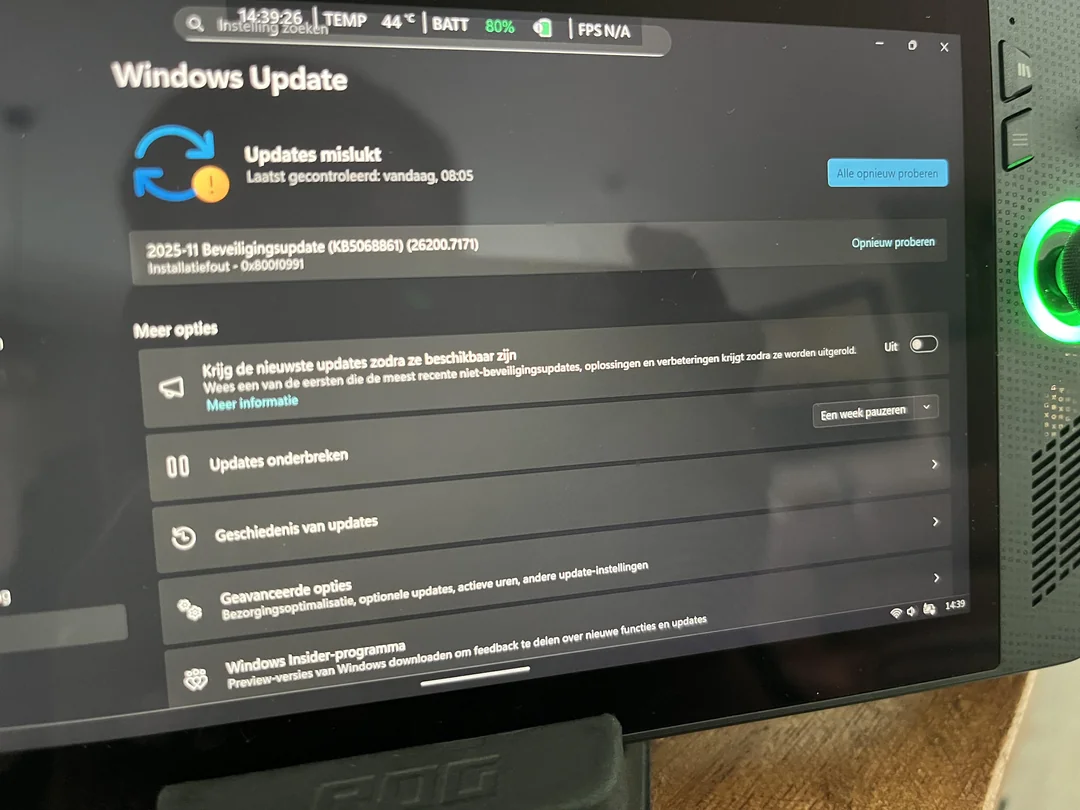
Are you trying to install the latest December 2025 Security Update (KB5072033), but it keeps failing at 35% or 100%? You are not alone.
Thousands of Windows 11 users are reporting that the update downloads successfully but fails to install with Error Code 0x800f0991 or 0x800f0982. This error is frustrating because it often reappears even after restarting your PC.
The issue is usually caused by corrupted Windows Update components or a conflict with the AppX Deployment Service in this specific version.
Here are 3 tested methods to fix this error and get your PC updated.
Method 1: Run the Official Windows Update Troubleshooter
Before trying complex command prompt fixes, let Windows try to repair itself. This works for about 30% of users.
-
Open Settings (Press
Win + I). -
Go to System > Troubleshoot.
-
Click on Other troubleshooters.
-
Find Windows Update and click the Run button.
Let the tool scan your system. If it finds a “Pending Restart” or “Corrupt Database,” click Apply Fix. Once finished, restart your PC and try updating again.
Method 2: Reset Windows Update Components (The “Sniper” Fix)
If Method 1 didn’t work, your update cache files are likely corrupted. We will force Windows to create new ones using the Command Prompt (CMD).
Step 1: Click Start, type cmd, right-click it, and select Run as Administrator.
Step 2: Copy and paste the following commands one by one, pressing Enter after each line:
DOS
net stop wuauserv
net stop cryptSvc
net stop bits
net stop msiserver
Ren C:\Windows\SoftwareDistribution SoftwareDistribution.old
Ren C:\Windows\System32\catroot2 catroot2.old
net start wuauserv
net start cryptSvc
net start bits
net start msiserver
Step 3: Close the CMD window and Restart your PC.
Why this works: The commands rename your old, broken update folders (SoftwareDistribution and catroot2). Windows is then forced to download fresh, error-free files for KB5072033.
Method 3: Manually Install KB5072033 (100% Success Rate)
If the automatic update is still stuck on “Downloading 0%,” you should skip it and download the offline installer directly from Microsoft.
-
Go to the official Microsoft Update Catalog website.
-
In the search bar, type
KB5072033and hit Enter. -
Look for the version that matches your system (usually Windows 11 Version 24H2 for x64-based Systems).
-
Click the Download button. A popup window will appear—click the
.msulink inside it. -
Once the file (approx. 400MB – 600MB) is downloaded, double-click it to install manually.
This method bypasses the “Windows Update” service entirely and installs the patch directly.
Conclusion
Error 0x800f0991 is a common bug in the December 2025 patch cycle, but it is easy to fix. Method 2 is usually the most effective for “Download Error” messages, while Method 3 is best if the update is stuck looping.
Did these solutions work for you? Let us know in the comments below if you are still facing issues with KB5072033.