Fix Windows Update Error 0x80070005 “Access Denied” (5 Working Solutions)
You are trying to update your computer to the latest version of Windows 11 or install a critical security patch. You click “Check for Updates,” the download starts, and then—boom. It fails instantly with the error message:
“There were some problems installing updates, but we’ll try again later. Error code: (0x80070005)”
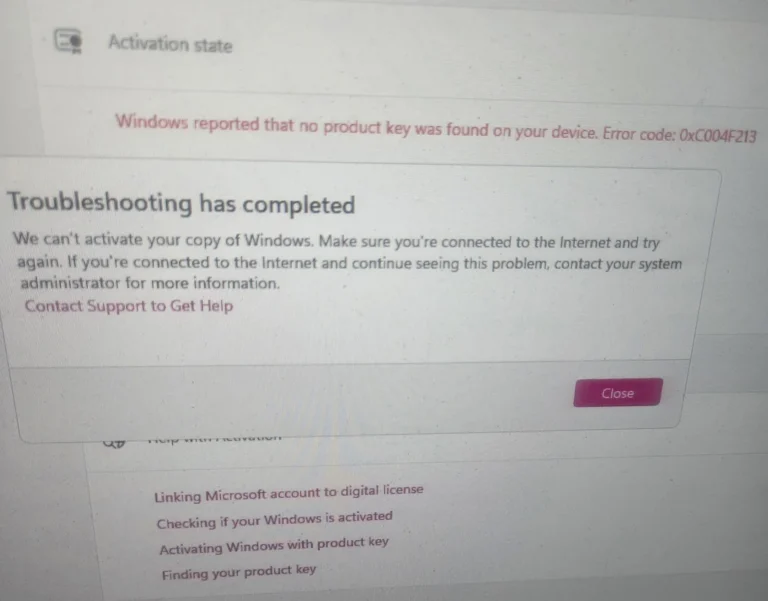
Sometimes, this error also appears when you try to update apps from the Microsoft Store or even when activating Windows.
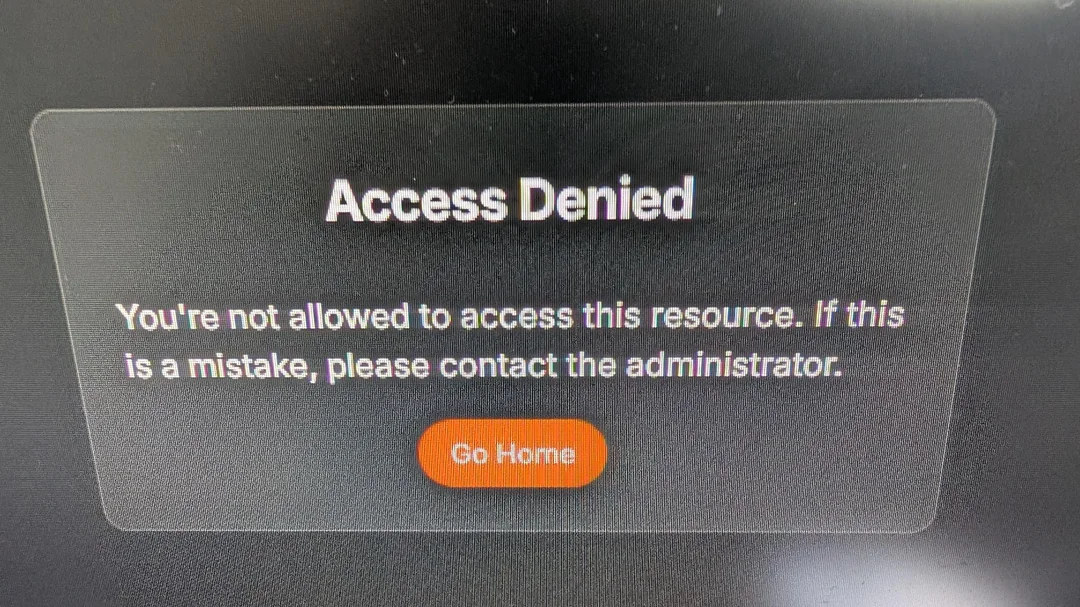
The code 0x80070005 translates to “ACCESS DENIED.”
Essentially, Windows Update is trying to save a file to your hard drive, but your system is telling it: “You don’t have permission to write here.” It’s a permission conflict between your user account and the system files.
In this guide, we will walk you through 5 tested methods to take back control of your system permissions and fix this error permanently.
Why Is This Happening?
Before we dive into the commands, it helps to understand the root cause.
-
Corrupt User Permissions: Over time, malware or bad system shutdowns can change the security settings of critical Windows folders.
-
Third-Party Antivirus: Aggressive antivirus software (like McAfee or Norton) sometimes locks system files, preventing Windows from updating them.
-
Administrator Rights: Even if you are the Admin, sometimes the specific “System” account loses access to the
SoftwareDistributionfolder.
Method 1: The “Administrator” Check (Easiest Fix)
Before doing anything complex, ensure you are actually logged in as an Administrator. If you are using a “Guest” or “Standard” account, you cannot install updates.
-
Press the Start button.
-
Click on your Profile Picture/Icon.
-
Click “Change account settings”.
-
Under your name, check if it says Administrator.
-
If it says “Standard User”: You need to log out and log in to the main Admin account of the PC.
-
Pro Tip: If you are already an Admin, try creating a New User Account with Admin rights and try updating from there. If that works, your old profile is corrupted.
Method 2: Run the SFC and DISM Tools
If a system file related to permissions is broken, the System File Checker (SFC) can fix it automatically.
-
Press Start, type
cmd. -
Right-click Command Prompt and choose Run as Administrator.
-
Type the following command and press Enter:
DOS
sfc /scannow -
Wait for the process to reach 100%.
-
If it says “Windows Resource Protection found corrupt files and successfully repaired them,” restart your PC and try updating.
If SFC fails, run the DISM command to repair the Windows Image:
DOS
DISM /Online /Cleanup-Image /RestoreHealth
Method 3: Reset Windows Update Components (The “Sniper” Fix)
This is the most effective solution for Error 0x80070005. We will force Windows to “forget” the old update files and create fresh ones with default permissions.
Step 1: Open Command Prompt (CMD) as Administrator.
Step 2: Stop the update services by typing these 4 commands (Press Enter after each):
DOS
net stop cryptSvc
net stop bits
net stop msiserver
Step 3: Rename the corrupted folders. This is the magic step.
DOS
Ren C:\Windows\SoftwareDistribution SoftwareDistribution.old
Ren C:\Windows\System32\catroot2 catroot2.old
Step 4: Restart the services:
DOS
net start wuauserv
net start cryptSvc
net start bits
net start msiserver
Step 5: Close the black window and Restart your Computer. Note: The first time you check for updates after this, it might take 5-10 minutes. Be patient.
Method 4: Grant Full Control to the “System” User
If Method 3 didn’t work, the AppData folder permissions might be strictly locked. We need to manually unlock them.
-
Open File Explorer (
Win + E). -
Navigate to this folder:
C:\Users\YOUR_USERNAME\AppData\Local.-
(Note: If you don’t see “AppData”, click View > Show > Hidden Items).
-
-
Right-click the Local folder and select Properties.
-
Go to the Security tab.
-
Click Edit > Add.
-
Type
Everyonein the box and click Check Names, then OK. -
Select “Everyone” in the list and check the box for Full Control.
-
Click Apply > OK.
Warning: Only do this if other methods fail. It opens up permissions for that folder, allowing the update agent to write the necessary files.
Method 5: Manually Install the Update (Bypass)
If the automatic Windows Update is completely stuck on 0x80070005, you can bypass the error by downloading the offline installer.
-
Go to the official Microsoft Update Catalog website.
-
In the search bar, type the KB Number of the update that is failing (e.g., “KB5045678”).
-
You can see the KB number on the Windows Update screen where the error appears.
-
-
Find the version for your system (usually x64).
-
Download the
.msufile and double-click to install it.
This method skips the “permission check” that the automatic updater performs, often installing the update successfully without triggering the error code.
Frequently Asked Questions (FAQs)
Q: Can a virus cause Error 0x80070005? A: Yes. Some malware (like “Access Mining” trojans) specifically changes your system permissions to prevent you from installing security updates that would delete the virus. We recommend running a full scan with Windows Defender or Malwarebytes.
Q: Does this error affect data on my hard drive? A: No. The “Access Denied” message refers to system files, not your personal photos or documents. Your data is safe.
Q: I got this error on the Microsoft Store. Is the fix the same? A: Mostly, yes. However, for Store errors, you can also try running the command wsreset.exe in the Run dialog (Win + R) to clear the Store cache specifically.
Conclusion
Error 0x80070005 is annoying, but it is usually a simple permission glitch. In 90% of cases, Method 3 (Resetting Components) will solve the problem immediately.
If you are still facing issues after trying all these steps, you might be dealing with a corrupted Windows installation, and a “Reset PC” (keeping files) might be your final option.
💡 Read Also on The Geek Solutions:
Other Update Errors: Fix Windows 11 Error 0x800f0991 (Step by Step)
Internet Issues? Fix DNS_PROBE_FINISHED_NXDOMAIN in Chrome
Did Method 3 work for you, or did you have to use the Manual Install? Let us know in the comments below!