How to Block Ads on Android Apps & Chrome (No Root Required)
There is nothing worse than reading an article or playing a game on your phone, only to have a full-screen video ad pop up that you can’t close for 30 seconds.
Ads on Android have become aggressive in 2025. They appear in your notification shade, inside your file manager (on Xiaomi/Samsung phones), and over every website.
The good news? You don’t need to “Root” your phone or install sketchy apps to stop them. Android has a built-in feature called Private DNS that can kill 90% of ads system-wide.
Here is the step-by-step guide to making your phone ad-free.
Method 1: The “Private DNS” Trick (Best Method)
This is a hidden setting in Android 9, 10, 11, 12, and up. It routes your traffic through a server that filters out ad domains before they even load.
-
Open Settings on your phone.
-
Go to Network & Internet (or Connections on Samsung).
-
Tap on More Connection Settings > Private DNS.
-
Select the option “Private DNS provider hostname”.
-
Type this exact text into the box:
dns.adguard.com -
Tap Save.
What just happened? Open Chrome or a free game full of ads. You will notice the ads are gone, replaced by empty white spaces. This works for in-game ads, banner ads, and website popups.
Method 2: Enable Chrome’s Built-in Ad Blocker
Google Chrome has a modest ad blocker that stops the most “intrusive” or misleading ads.
-
Open Chrome.
-
Tap the three dots (top right) > Settings.
-
Scroll down to Site Settings.
-
Tap on Intrusive Ads (or just “Ads”).
-
Make sure the toggle is OFF (Yes, off means “Block ads”).
-
Go back and tap on Pop-ups and redirects.
-
Make sure this toggle is also OFF.
Method 3: Stop “Notification Spam” (The Fake Virus Alerts)
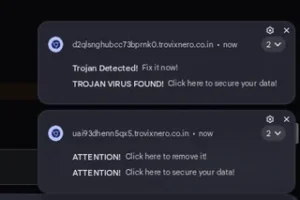
If you get notifications saying “Your phone is infected!” or “You won a prize!”, these are not viruses. They are notification ads from a website you visited.
-
Long-press the annoying notification when it appears.
-
Tap Turn off notifications.
-
To fix it permanently: Go to Chrome Settings > Site Settings > Notifications.
-
Toggle the main switch OFF, or remove any weird websites from the “Allowed” list.
Frequently Asked Questions (FAQs)
Q: Will dns.adguard.com slow down my internet? A: Usually, no. In fact, it often speeds up browsing because your phone doesn’t have to download heavy ad images and videos.
Q: Does this block YouTube Ads? A: No. YouTube ads are injected directly into the video stream. To block those, you need a premium subscription or a specialized browser like Brave.
Q: Why do some apps say “No Internet” after Method 1? A: Some apps detect ad-blockers and refuse to load. If this happens, just go back to Settings and turn Private DNS to Automatic temporarily.
Conclusion
Method 1 is a game-changer. Once you set up Private DNS, you will wonder how you lived without it. It is free, safe, and requires no app installation.
💡 Read Also on The Geek Solutions:
Battery Draining Fast? Fix Android 15 Battery Drain Issues
WiFi Issues? Fix DNS_PROBE_FINISHED_NXDOMAIN Error
Did the Private DNS method stop your game ads? Tell us below!