If you have an iPhone, checking battery health is easy—just go to Settings and look for the “Maximum Capacity” percentage.
But on Android? That feature is missing.
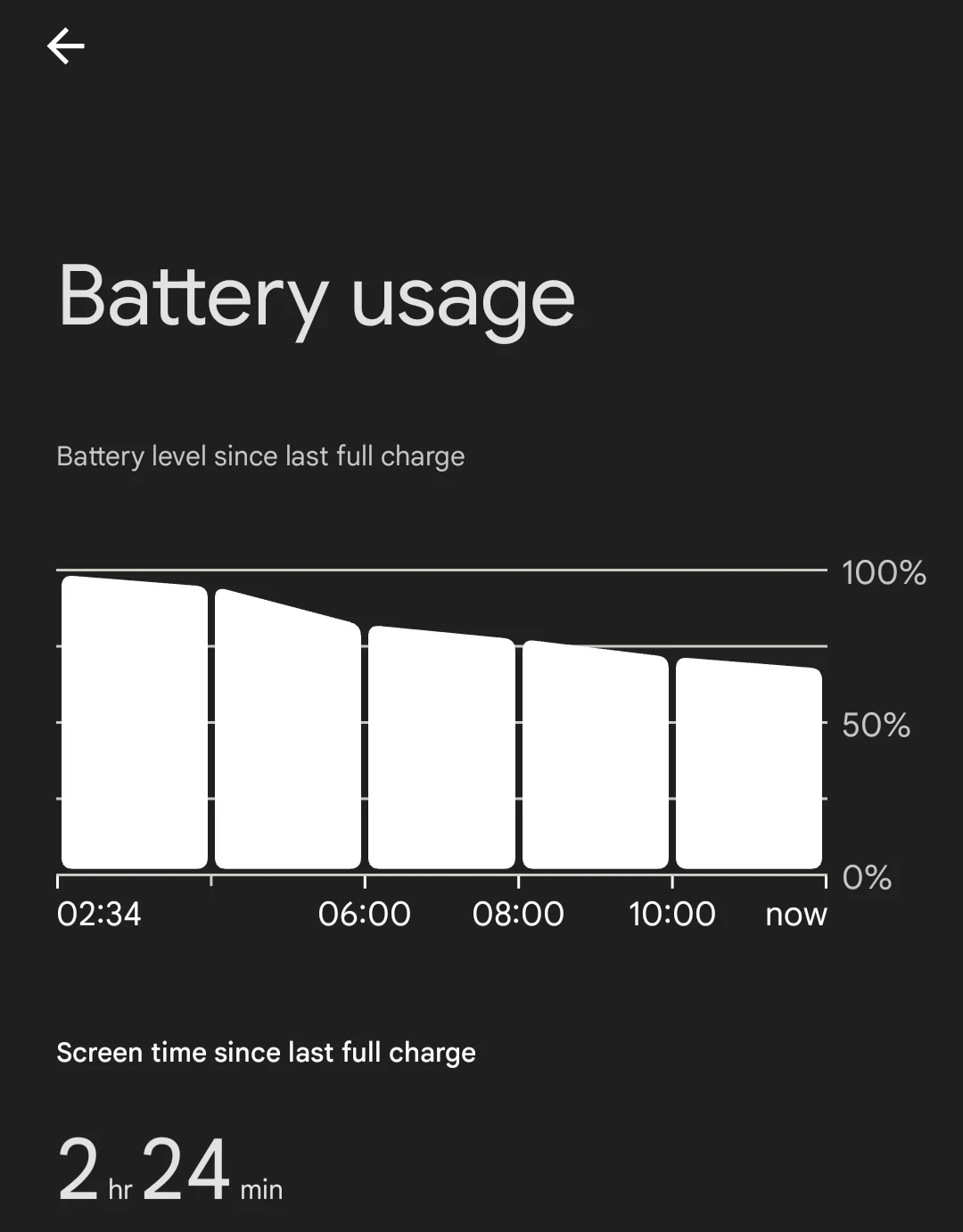
Google has not added a native “Health Percentage” in Settings for most phones. You might feel your battery draining faster, but you don’t know if the battery is physically degraded or if an app is just using too much power.
Here is the “Sniper” guide to finding your Real Battery Capacity on Samsung, Xiaomi, Pixel, and OnePlus devices using secret codes.
Method 1: The Secret Dialer Codes (Works on Some Phones)
Android engineers leave “Backdoors” in the software to test hardware.
For OnePlus / Xiaomi / Some Motorolas:
-
Open your Phone (Dialer) app.
-
Type this code exactly:
*#*#4636#*#* -
A “Testing” menu will open immediately.
-
Look for “Battery Information”.
-
Check the Battery Health status. It won’t give a percentage, but it will say:
-
“Good” (Healthy)
-
“Fair” (Degraded)
-
“Poor” (Needs Replacement)
-
For Samsung Phones: Samsung blocks the generic Android code. Instead, use the Samsung Members method:
-
Open the Samsung Members app (Pre-installed).
-
Tap Support (bottom right) > Phone Diagnostics.
-
Tap Battery Status.
-
It will show “Life: Good” or “Weak”.
Method 2: The “AccuBattery” Method (Most Accurate)
Since the codes don’t give a generic %, we use a math-based approach.
-
Download AccuBattery from the Play Store.
-
How it works: It measures how much energy goes into your battery while charging vs. how much the manufacturer says it should hold.
-
The Step: You must use the phone for 3-4 days normally. Charge it from 15% to 100% at least once.
-
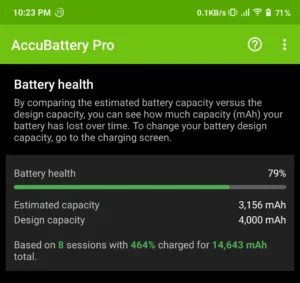
After a few days, open the Health tab in the app.
-
It will show you a graph: e.g., “Estimated Capacity: 4,200 mAh / Designed Capacity: 4,500 mAh (93%)”.
This 93% is your Real Battery Health.
Method 3: The ADB Command (For Geeks)
If you have a PC, you can pull the exact data directly from the Android kernel logs. This is the most accurate method for Pixel and Android 14+ devices.
-
Enable Developer Options on your phone (Tap Build Number 7 times).
-
Enable USB Debugging.
-
Connect phone to PC.
-
Open CMD on PC and type:
DOS
adb shell dumpsys battery -
Look for these lines in the text wall:
-
charge counter: The current mAh in the battery. -
status: 2 (Charging).
-
-
Note: Android 14 introduced a new API. If you are on Android 15 Beta, check Settings > About Phone > Battery Information (new feature).
Frequently Asked Questions (FAQs)
Q: At what percentage should I replace my battery? A: Generally, if your health drops below 80%, you will notice significant degradation (phone shutting down at 10% or lagging).
Q: Does Fast Charging damage battery health? A: Heat damages batteries, not the speed. If your phone gets extremely hot during 120W charging, it will degrade faster. Try to keep it cool.
Q: Why does my battery drain so fast even at 100% health? A: That is likely a software bug, not hardware. Check our guide on Fix Android 15 Battery Drain to solve that.
Conclusion
While Android doesn’t make it easy, AccuBattery (Method 2) is the best tool for 99% of users. It gives you a real number based on actual usage, not just a system estimate.
💡 Read Also:
Software Fix: Fix Android 15 Battery Drain Issues
Hardware Check: Fix Moisture Detected Error in Samsung
Is your battery health “Good” or “Poor”? Let us know the result!